 Create your QR code
QR code printer setup for your print shop.
Give customers a QR code to send documents from their phones. Get the file, copy count and colour choice together, then print from your shop computer.
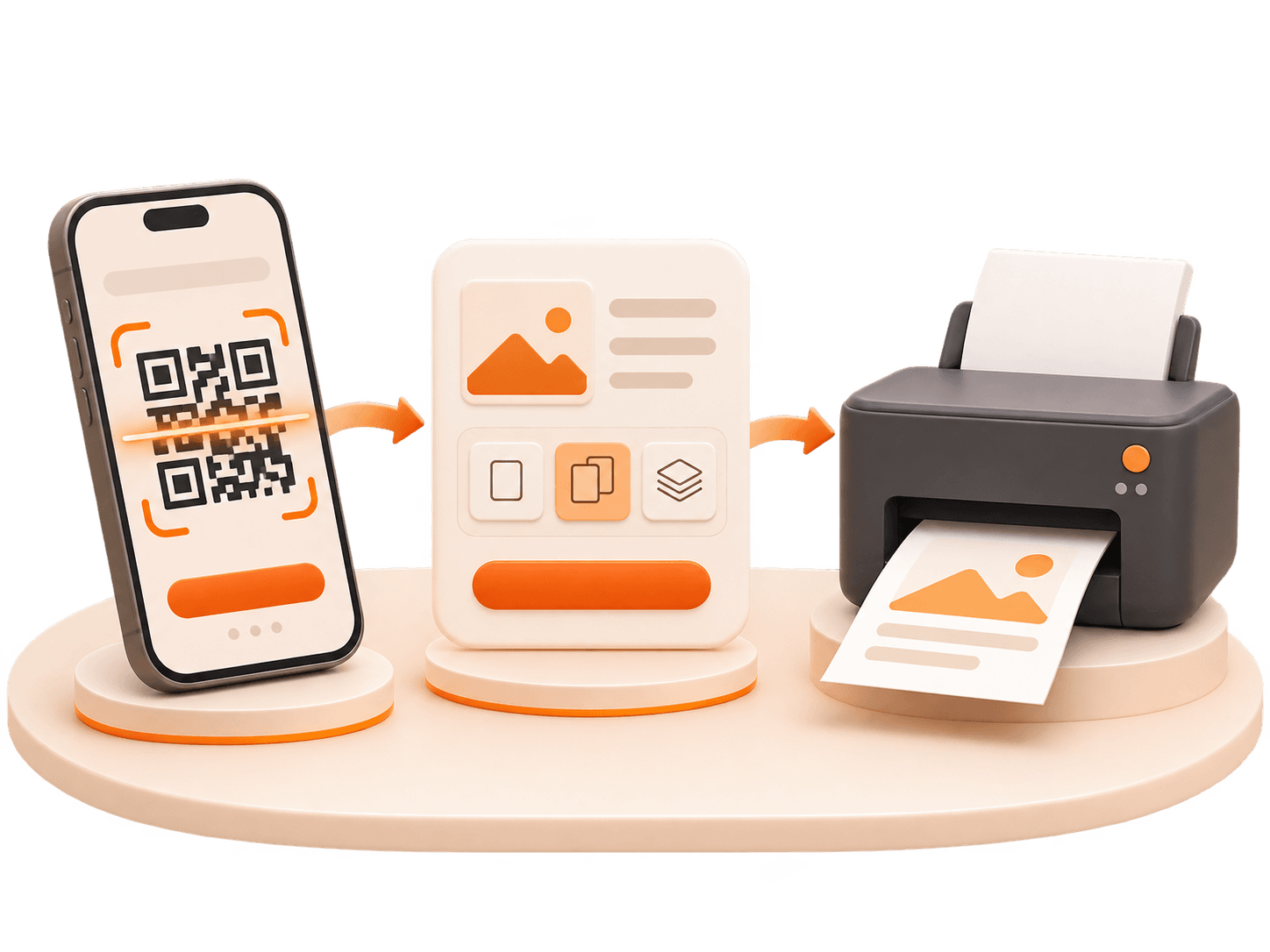
From your shop QR to the first print
 1
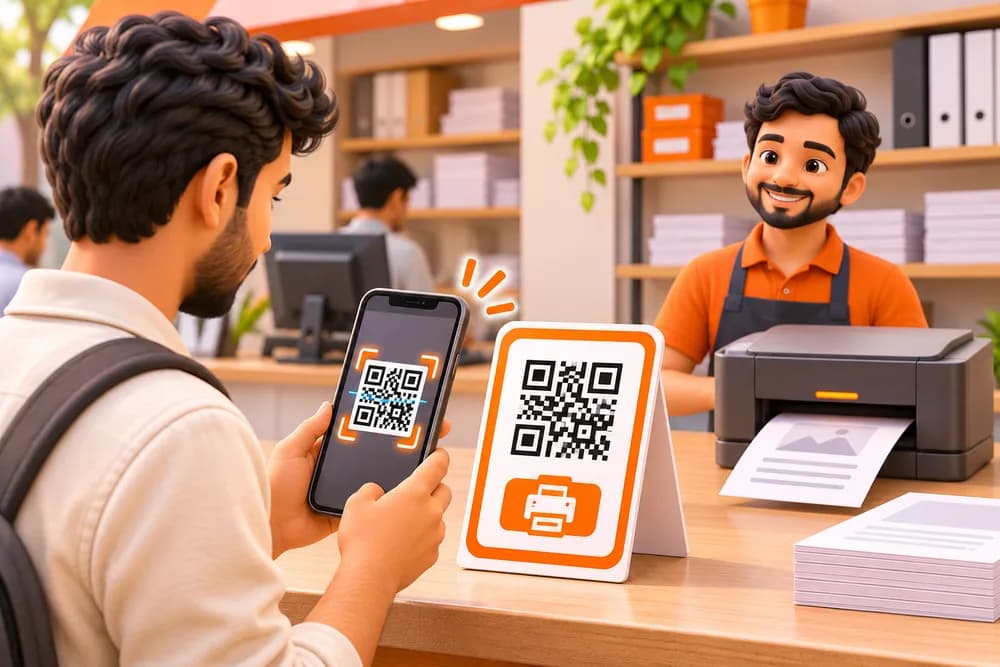
Set your shop rates and share your QR
Add your black and white and colour rates per file copy. Download your shop QR, put it at the counter and scan it with your phone to check the shop name.
 2
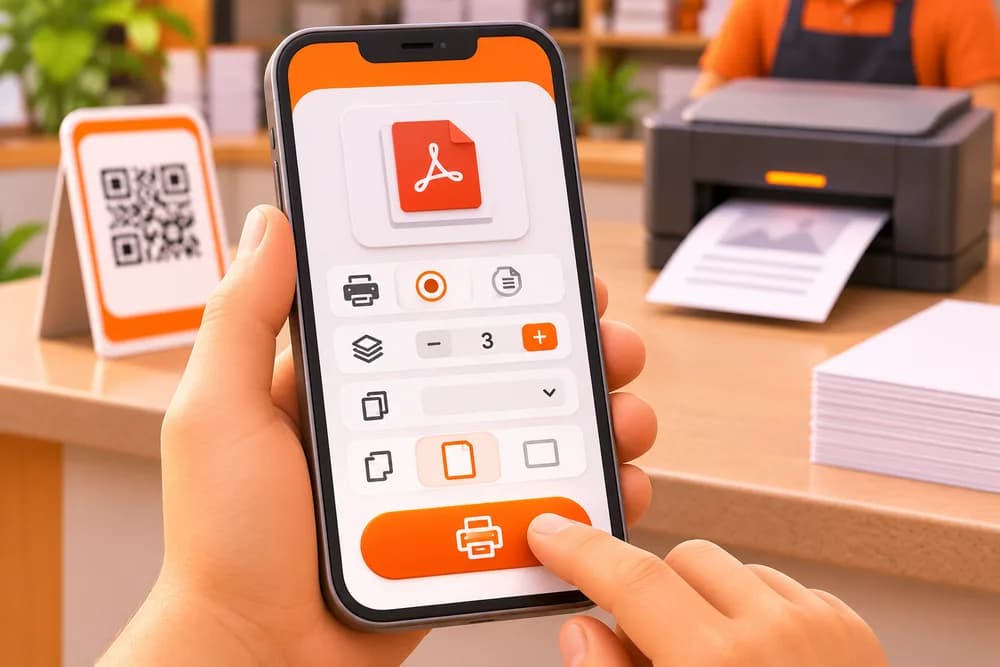
Let customers send their files
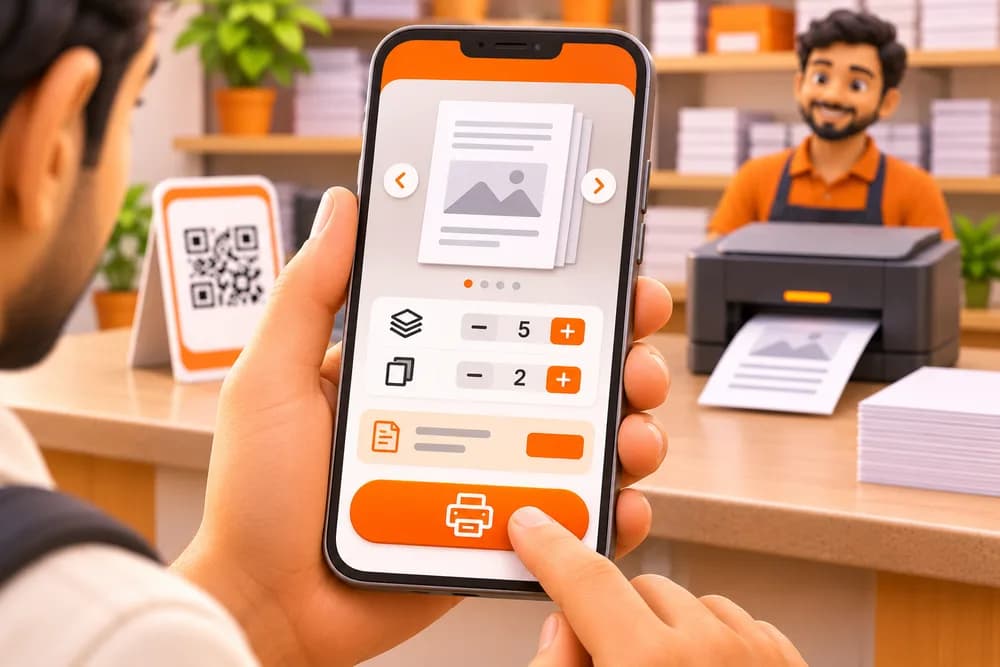
Customers upload a PDF, JPEG or PNG up to 5 MB, choose the number of copies and select black and white or colour. They see the total before sending.
 3
Print from your shop computer
Open the job in your dashboard and download the file. Select your existing printer in the computer’s print dialog and apply the requested settings.
 4
Mark the job ready for pickup
Once the pages are printed, mark the job ready. Record the cash payment and confirm pickup when you hand over the pages.
Before you print your shop QR
Do I need a QR label printer?+
Your existing printer can print the shop QR on plain paper. Place the sign where customers can reach it with their phone camera.
Why doesn’t my phone open the shop page?+
Check that the link in your dashboard opens on the phone. If the QR points to localhost, ask for the shop’s public link before printing the sign.
Does scanning send the document straight to my printer?+
Scanning opens your shop’s upload page. Once the customer sends the file, staff open the job and print it from the shop computer.